
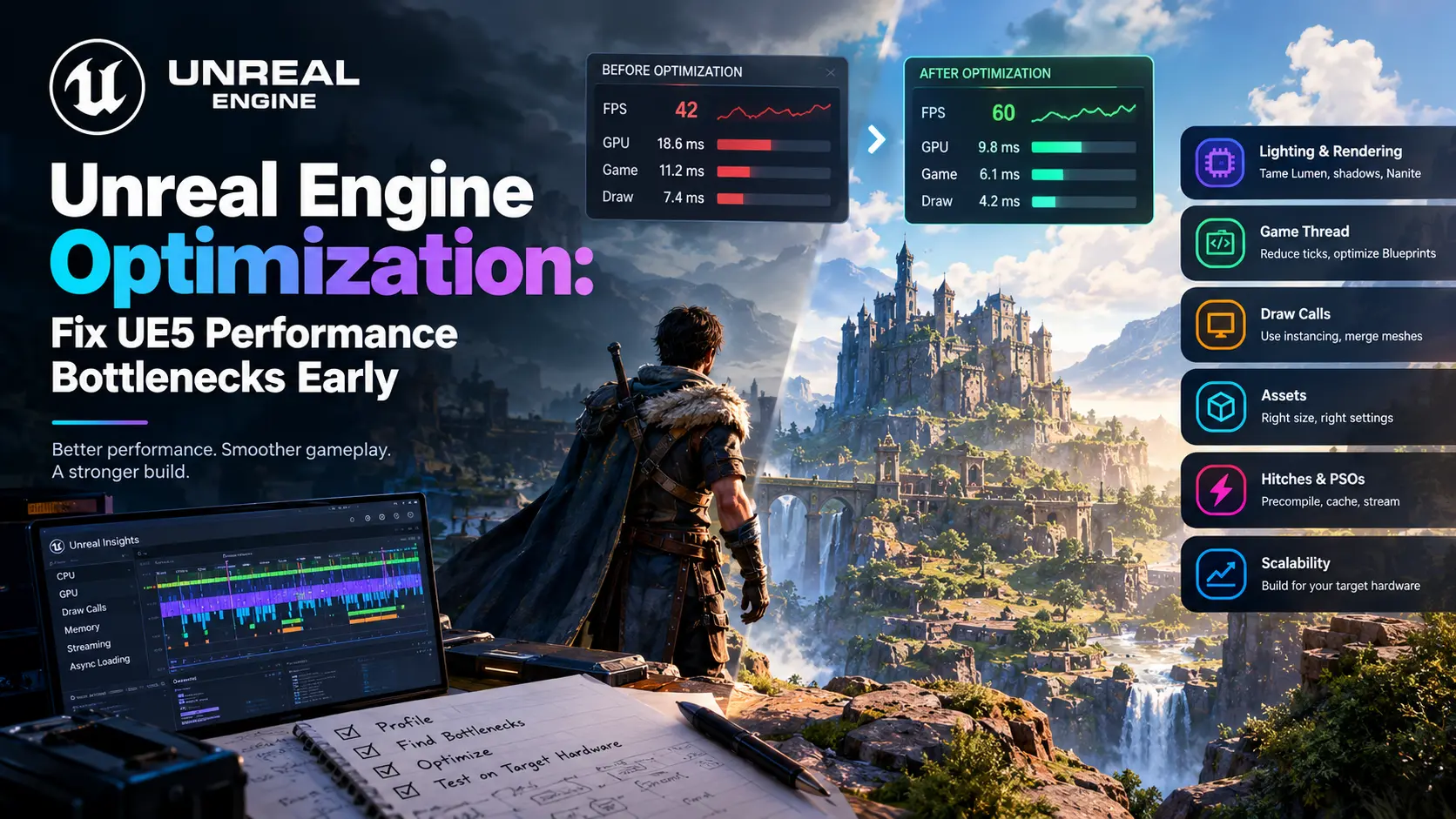
Every Unreal project has a quiet moment, usually around month three, when the frame rate starts to slide, and nobody can say exactly when it began. The level looked great last sprint. Now the editor viewport stutters, the build hitches every time a new enemy appears, and the lead programmer is saying the word “Nanite” the way people say “bless you.” Performance debt behaves like financial debt: small, invisible, and compounding until someone checks the balance.
This guide is a hit list of the bottlenecks that cause the most pain in UE5 projects, ordered by when to deal with them. Anyone chasing Unreal FPS optimization in the final weeks of a project is already paying the highest price, so the order matters. Some belong in week one, before a single production asset exists. Some belong in the first playable. The rest belong in a standing review that never ends. Each entry names the symptom, the likely cause, and the first fix, because fast diagnosis matters more than clever tricks.
Why “Fix It Early” Is More Than a Slogan
The cost of a performance fix grows with the amount of content built on top of the mistake. Changing a lighting approach in a gray-box level takes an afternoon. Changing it after three hundred hand-placed lights, six hundred materials, and a finished art pass takes a quarter. The same logic applies to texture budgets, collision setups, tick-heavy Blueprints, and world streaming design. UE5 performance problems that surface at the end of production are rarely new. They are early decisions finally coming due.
Early performance work also changes how a team designs. A studio that knows its budget from week one builds levels that fit it. A studio that discovers its budget in beta spends the final months deleting the work it was proudest of. Effective Unreal Engine optimization is therefore a scheduling discipline as much as a technical one, and the sections below are sorted accordingly.
Week One: Set Budgets and Learn to Read the Numbers
Before profiling anything, settle two decisions: the target platform and the target frame rate. Everything else follows from the arithmetic.
| Target FPS | Frame Budget | Typical Use |
| 30 | 33.33 ms | Console open-world titles, VR minimum on some platforms |
| 60 | 16.67 ms | Standard gameplay target |
| 120 | 8.33 ms | Competitive shooters, high refresh displays |
| 144 | 6.94 ms | Esports and enthusiast PC |
Both the CPU and GPU must finish their work inside that window, and the slower side sets the pace. Unreal gives you an immediate readout. Type `stat unit` into the console and it reports total frame time alongside Game thread time (gameplay logic, AI, physics simulation), Draw thread time (render thread preparation and culling), GPU time, and RHI thread time. The largest number is the bottleneck. If the GPU reads 20 ms and the Game thread reads 8 ms, the project is GPU-bound, and no amount of Blueprint tuning will move the frame rate.
Write the budget down, split by category, and put it where artists and designers will see it: GPU time per major rendering feature, game thread time per system, and memory per asset type. A budget nobody has read cannot be enforced.
What Can Actually Be Outsourced?
Game art outsourcing covers a wide range of disciplines: 2D and 3D character design, environment art, UI and UX design, concept art, marketing and key art, animation, and technical art like rigging and shader work. A studio can outsource a single asset category or run an entire art pipeline through an external partner, depending on internal capacity and budget.
Learn the Tools Before You Need Them
Four tools cover most diagnosis:
- `stat unit` and `stat unitgraph`: the first check, every time. It tells you which thread is the limit.
- `profilegpu`: captures a single frame as a tree of render passes with millisecond timings. Attack the largest passes first. Cutting a 4 ms pass by a quarter saves more than deleting a 0.8 ms pass entirely.
- Unreal Insights: a timeline of every thread across many frames. Launch the editor with `-trace=default,gpu,memory` or enable tracing at runtime with `trace.enable default,gpu`. Look for the widest bar in each frame, gaps where threads wait on each other, and periodic spikes that cause hitches even when average FPS looks fine.
- External GPU tools: RenderDoc for frame captures, PIX on Xbox and Windows, Radeon GPU Profiler, NVIDIA Nsight, and Xcode Instruments for Apple platforms. These see details Unreal’s own stats cannot.
UE 5.6 added GPU Profiler 2.0, which merges the older Stats, ProfileGPU, and Insights data and shows graphics and compute tracks, async queues, and fence waits in one place. It also introduced experimental memory tracing in Insights with per-platform budgets for each asset type, which is valuable for catching asset bloat before it ships.
Two habits prevent most wasted effort. First, profile in the worst case: the most complex level, the highest actor count, the worst camera angle, with AI, particles, and physics all active. Second, profile shipping builds on target hardware, because development builds run significantly slower and the editor can hide problems entirely.
The Bottleneck Map
Match what the profiler shows to the likely cause before changing anything.
| Symptom | Likely Cause | First Fix |
| Game thread is the longest bar | Tick-heavy actors, Blueprint hot paths, physics body count | Reduce ticking, move hot Blueprint logic to C++, simplify collision |
| Draw thread is the longest bar | Too many draw calls, culling cost, many unique materials | Instancing, merged meshes, fewer materials, Nanite where suitable |
| GPU is the longest bar | Lighting, shadows, overdraw, resolution, post-processing | Lumen and shadow scalability, fewer lights, lower screen percentage |
| Spikes every few seconds | Streaming, garbage collection, shader or PSO compilation | Streaming budgets, PSO precaching, pooling |
| Slow only after long play | Memory growth or leaks | LLM and Insights memory tracing, asset unloading |
| Stutter when something appears for the first time | Shader compilation or pipeline state creation | PSO caching, precompile on load screens |
Bottleneck One: Lighting and Rendering Performance on the GPU
On most UE5 projects that miss their target, the GPU is the cause, and the dominant cost is usually dynamic lighting. Rendering performance in Unreal depends on a handful of expensive features working together, and each needs a budget.
Lumen. Lumen delivers fully dynamic global illumination and reflections, and it costs real frame time. Its quality settings scale from software tracing on a wide range of hardware to hardware ray tracing on capable GPUs. Reduce trace quality through scalability profiles, simplify scene lighting, and avoid piling emissive meshes and many dynamic lights into scenes that do not need them. Epic has kept trimming Lumen’s cost: UE 5.6 made far-field tracing roughly 30 percent faster on console, and about 50 percent faster with a new occlusion-only mode. Some options, such as running the screen probe gather at reduced resolution for a reported 3x speedup on that pass, are off by default and trade away fine detail, so test them against your art direction before switching them on.
Virtual Shadow Maps. VSMs give high-resolution shadows at a cost that rises with dense scenes and many casters. Cap the number of shadow-casting lights, disable shadows on small objects, and review VSM memory use, since some settings can double it. For projects with a conventional lighting setup, evaluate if the visual gain justifies the budget.
Nanite. Nanite removes most of the manual LOD burden for high-polygon static geometry and can cut draw submission cost dramatically. It still has costs. Nanite materials have their own overhead, and overdraw from stacked, high-density foliage and masked materials can bite. Support for mesh and material types has expanded across UE5 releases, so check the documentation for your exact engine version before assuming a given asset type works.
Resolution and upscaling. Lowering the internal render resolution and using temporal upscaling is among the highest-return changes available on a GPU-bound project. Test screen percentage options on target hardware and expose them in graphics settings.
Post-processing. Bloom, depth of field, motion blur, and heavy color grading all add up. Audit the post-process volumes in every level, since stacked volumes with overlapping settings are a classic source of invisible cost.
Bottleneck Two: The Game Thread
When `stat unit` shows the Game thread leading, the cause is almost always too much work per tick. Typical offenders:
- Everything ticks, every frame. Actors and components tick by default if enabled. Disable tick on anything that does not need it, and give the rest a longer tick interval. A health pickup does not need to run logic sixty times a second.
- Blueprint hot paths. Blueprints are fine for most gameplay, but loops over large arrays, per-frame casts, and Event Tick chains add up. Profile with Insights, then move proven hot spots into C++. Note that Blueprint nativization was removed in UE5, so there is no automatic conversion to rely on.
- Physics body count. Thousands of simulating bodies and complex collision are expensive. Use simple collision for anything that does not need precision, and avoid per-poly collision on dynamic objects.
- AI at scale. Large crowds need a level of detail for AI, with distant agents running reduced logic or updating less often. For very large populations, Epic’s Mass framework is designed for data-oriented simulation.
- Spawn and destroy churn. Creating and destroying actors during play causes game thread spikes and garbage collection pressure. Pool frequently spawned objects like projectiles and effects.
Unreal’s newer tooling helps here, with improvements like batched ticks and parallelization of Mass and physics work, yet no engine feature substitutes for removing work that should never run.
Bottleneck Three: Draw Calls and Draw Thread Cost
When the Draw thread leads, the renderer is spending its time preparing work instead of doing it. A profiling guide for UE5 cites draw calls in the thousands, around 5,000 as a rough warning level on PC and console, though the true ceiling depends on platform and scene. Treat any such number as a prompt to investigate, not a law.
The fixes follow a clear order:
- Instance repeated geometry. Hierarchical Instanced Static Meshes and instanced foliage draw many copies in one call.
- Merge static meshes where individual selection or culling does not matter.
- Reduce unique materials. Each distinct material can mean another draw. Share master materials and use material instances and texture atlases or trim sheets.
- Use Nanite for complex, high-count static geometry where it fits.
- Tune culling. Set sensible cull distances on small props and review occlusion behavior, since objects the player cannot see should cost almost nothing.
- Check LODs on anything not covered by Nanite, including skeletal meshes, and thin out distant foliage with impostors.
Bottleneck Four: Asset Optimization in UE5
Many frame time problems start as asset problems that nobody caught at import. Asset optimization UE5 teams do early prevents most of the later firefighting.
- Textures. Match resolution to screen coverage. A prop that never fills more than a fraction of the screen does not need a 4K texture set. Use texture groups, set sensible maximum sizes, and pack data channels, for example, occlusion, roughness, and metallic into one texture.
- Streaming pool. If the log reports that the texture streaming pool is over budget, textures will blur or pop. Raise the pool within the memory budget of your lowest platform or reduce what is loaded.
- Virtual textures. Useful for very large or layered surfaces, they carry their own overhead. Apply them deliberately instead of by default. UE 5.6 changed default virtual texture settings and removed some render thread waits for cooked builds, so retest after upgrading.
- Meshes. Set triangle budgets per asset class. Remove hidden geometry, avoid unnecessary vertex colors and UV channels, and use sensible lightmap or Nanite settings.
- Skeletal meshes and animation. Cap bone influences per vertex, use LODs for characters, and compress animation data. Epic reports its RigLogic facial rig now evaluates 30 to 40 percent faster at low LODs, which helps crowds and lower-end platforms.
- Import conventions. Enforce naming, folders, and import presets so the same rules apply to every artist. Our guide to the Unity asset pipeline covers the same discipline in a different engine, and nearly every rule transfers.
Review asset budgets with data. Unreal’s Size Map and Reference Viewer show what an asset pulls in, and Insights memory tracing shows what is loaded at runtime. The largest assets are almost always a short list of oversize textures and audio files.
Bottleneck Five: Hitches, Shader Compilation, and PSOs
Average frame rate hides the problem players feel most: hitches. A project can average 60 FPS and still stutter every time a new effect or enemy type appears, and the usual cause is shader compilation or pipeline state object creation on first use.
When a material or effect is drawn for the first time, the engine may need to create the pipeline state for it, which can freeze the render thread for a noticeable moment. The remedy is a combination of PSO precaching and PSO bundled caches, which gather and compile the states a game needs ahead of time, often during loading screens. Epic has improved this area repeatedly across UE5, including fixing specific stalls in pipeline state creation, but the project still has to be set up correctly and tested on clean machines with no existing shader cache. A game that runs smoothly on the development workstation and hitches on a new player’s machine is almost always failing this test.
Other common hitch sources are level streaming and garbage collection. Set time budgets for async loading and streaming so a hundred loads do not land in a single frame, and consider World Partition and hierarchical level of detail (HLOD) for large worlds. Pool actors that spawn often to keep garbage collection predictable. In Insights, hunt for the periodic spike instead of the average.
Scalability: Build It In From the Start
A game that ships on one hardware tier is rare. Unreal’s scalability system groups settings for view distance, shadows, post-processing, textures, effects, foliage, and more into levels from Low through Epic and Cinematic. Build your content against the lowest tier you plan to support, then let higher tiers add quality. Retrofitting scalability into content authored only at Epic settings is painful.
Document what each tier changes, test each on target hardware, and keep device profiles for consoles and handhelds current. Epic’s own Fortnite-tuned profiles for 60 FPS play are a useful reference for what a production-grade 60 Hz setup adjusts.
A Standing Performance Review
Optimization works best as a recurring habit, not a crisis. A simple cadence keeps problems small:
| Cadence | Activity |
| Every sprint | Run `stat unit` on the worst-case level and log the numbers |
| Every milestone | Profile a shipping build on minimum-spec hardware, review the largest assets, test on a clean machine for hitches |
| Before each platform submission | Full capture with Insights, memory and load time review, scalability tier checks |
| After every engine upgrade | Retest, since defaults and costs change between versions |
Automated benchmarks that fly a camera through key levels and record frame times catch regressions the week they appear. Teams that adopt this early rarely face a last-minute optimization crunch.
Cobweb Games’ Approach to Unreal Engine Optimization
Performance planning at Cobweb Games begins in pre-production with a written budget for GPU time, game thread time, and memory by platform. Every milestone includes profiling on target hardware, and regressions are tracked like bugs. Studios exploring Unreal Engine game development with us get a team that builds to the budget instead of discovering it in beta.
Optimization also touches art and testing. Our 3D environment design artists build modular, budget-aware worlds, and our game testing practice runs performance passes on real device matrices. For teams planning a larger 3D game development project, we fold these checks into the production schedule from the first milestone.
Common Unreal Optimization Mistakes
Profiling in the editor. The editor adds overhead and hides problems. Profile packaged builds on target hardware.
Optimizing the wrong thread. A week spent on Blueprints in a GPU-bound project changes nothing on screen.
Trusting average FPS. Players feel hitches and spikes long before they notice a slightly lower average.
Switching on every headline feature. Lumen, Nanite, and Virtual Shadow Maps each need a budget and a test on the lowest target.
Skipping clean-machine tests. Shader and PSO hitches only show on a machine with no cache.
Letting everything tick. Default ticking multiplied across thousands of actors is a silent budget killer.
Ignoring memory until late. Asset bloat is cheapest to fix at import.
Changing five things at once. Change one variable, re-measure, then continue.
Frequently Asked Questions
Where should Unreal Engine optimization start?
With the budget and the numbers. Set a target frame rate and platform, run `stat unit` on a worst-case level, and identify which of the Game thread, Draw thread, or GPU is the limit. Every later fix depends on that answer.
Is Nanite always faster?
No. Nanite greatly reduces the cost of high-polygon static geometry and manual LOD work, though it has its own overhead and some material and mesh limitations that vary by engine version. Measure it on your content and target hardware.
Why does my game stutter even when the average FPS is high?
Usually hitches from shader compilation, pipeline state creation, level streaming, or garbage collection. Use Unreal Insights to find periodic spikes, set up PSO caching, and test on a clean machine.
How many draw calls is too many in Unreal Engine 5?
There is no universal number. One profiling guide treats several thousand draw calls as a warning zone on PC and console, but the right limit depends on platform and scene. Use instancing, merging, and shared materials, then check the Draw thread time.
Should I profile in the editor or a packaged build?
A packaged build on target hardware. Development builds and the editor run significantly slower and can hide or distort real problems.
What is the single biggest GPU cost in most UE5 projects?
Dynamic lighting and shadows, usually Lumen and Virtual Shadow Maps. Scalability profiles, fewer shadow-casting lights, and lower internal resolution with upscaling typically return the most.
